When we launch a website we want it to go off without a hitch, but there are so many things that can go wrong it's almost too many to list. Well, almost! We list here the top 100 points we check to make sure everything is A-Ok before launch, reflecting years of experience building up a system geared towards minimizing any and all errors as much as possible.
We cover everything from speed and performance, to UX and accessibility, to handling all different kinds of browsers and device sizes, to security.
Also, if you would like this list in a Google Sheet format, with many more cross checks and lists and parameters than we can list here, can access it here for your own use
Let's go!
Speed & Performance (1–15)
1. Page load time
● What/Why: Page load time measures how long it takes for a page to fully appear to a user. Fast pages create a positive first impression, reduce bounce rates, and improve conversions. Google uses load speed as a ranking factor, meaning faster pages rank better. Users on mobile or slow connections are particularly sensitive—every second of delay can lead to measurable traffic loss.
● How: Free: PageSpeed Insights Paid: WebPageTest
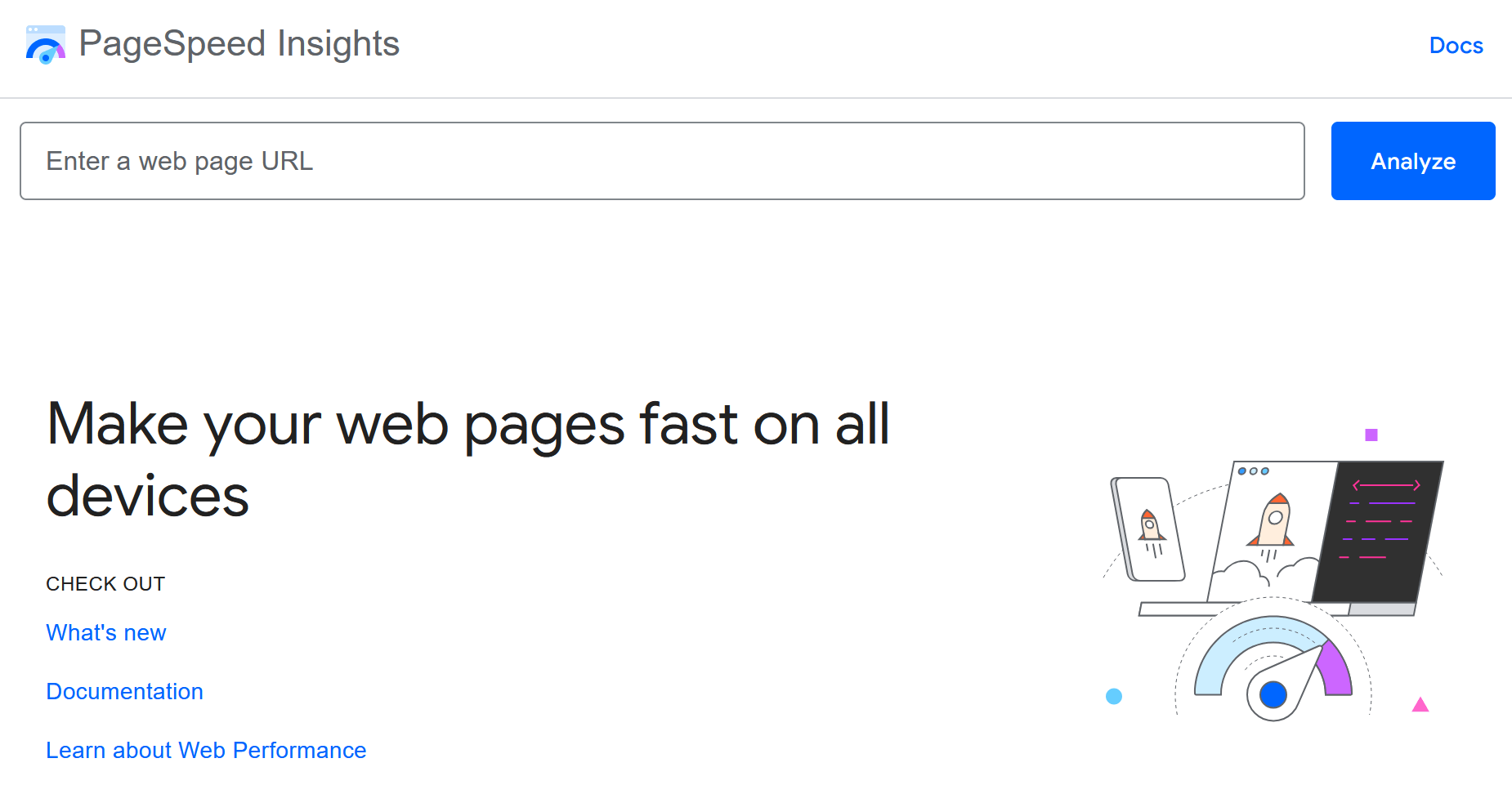
PageSpeed Insights by Google
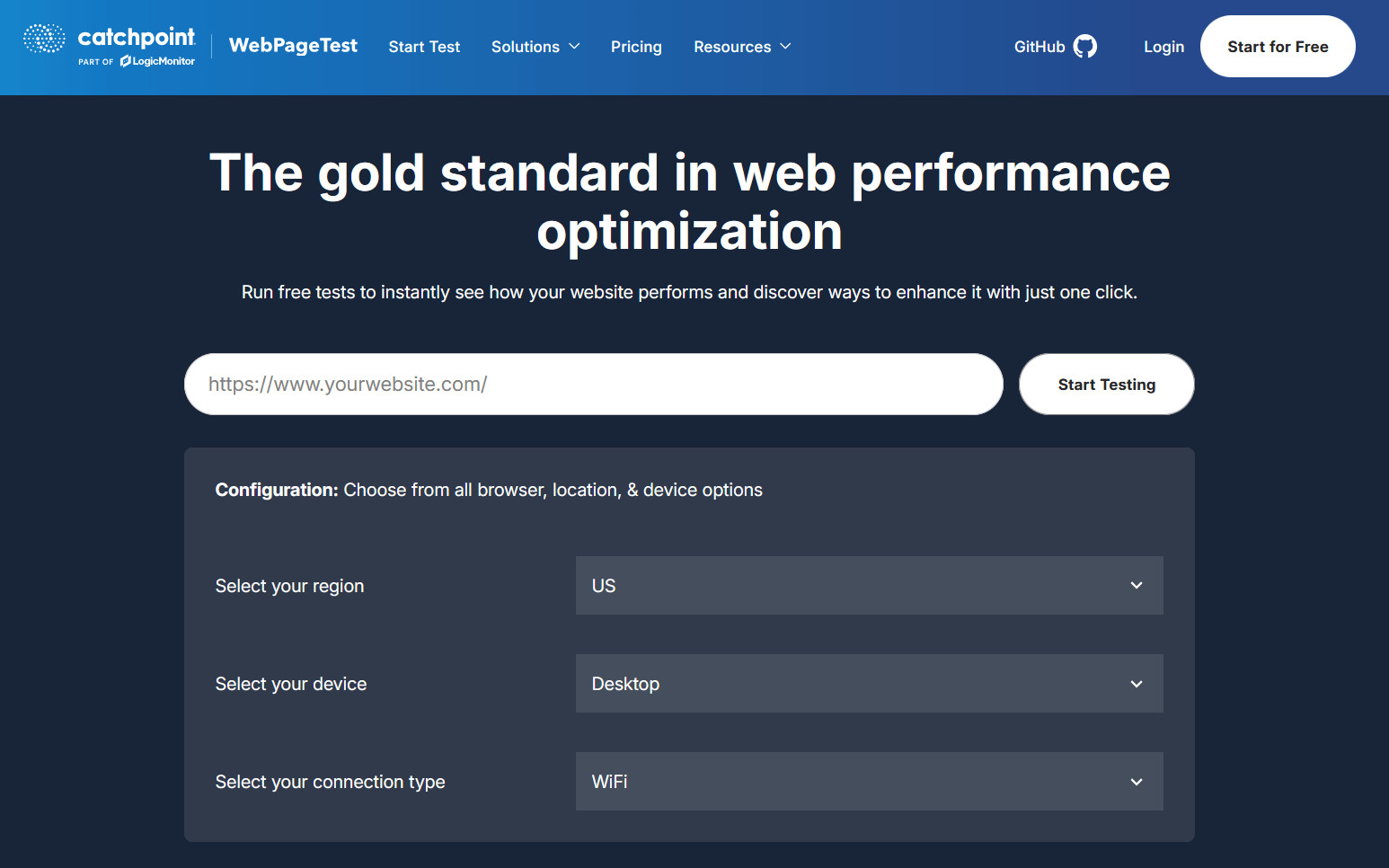
Webpagetest.org
2. Largest Contentful Paint (LCP)
● What/Why: LCP tracks when the main content—like the hero image, headline, or primary text—loads. Users perceive a site as fast when meaningful content appears quickly. A slow LCP makes the page feel sluggish and can increase bounce rates. Optimizing LCP improves engagement, especially on the first visit.
● How: Free: Chrome DevTools → Performance Paid: SpeedCurve
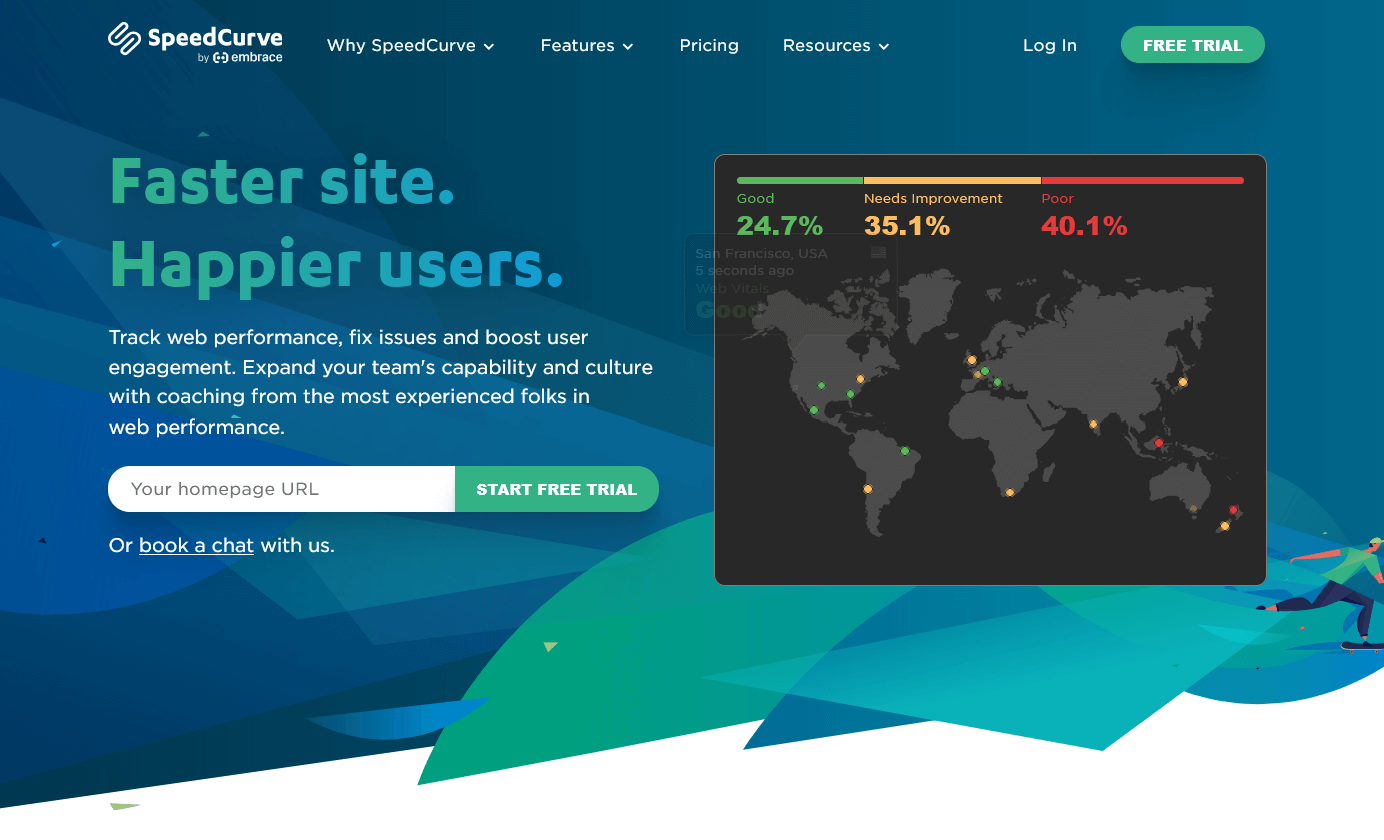
SpeedCurve
3. First Input Delay (FID) / INP
● What/Why: FID measures the time from a user interacting with the page (clicks, taps, or keyboard input) to the browser responding. INP extends this to overall interactivity. Pages that load visually fast but respond slowly feel broken and frustrate users. Improving interactivity increases trust, conversions, and retention.
● How: Free: PageSpeed Insights Paid: SpeedCurve
4. Cumulative Layout Shift (CLS)
● What/Why: CLS measures unexpected movement of elements during loading, like buttons or images jumping. High CLS can cause accidental clicks, reduce usability, and frustrate users. Reducing layout shifts increases perceived stability and creates a more professional experience.
● How: Free: Lighthouse Paid: Calibre
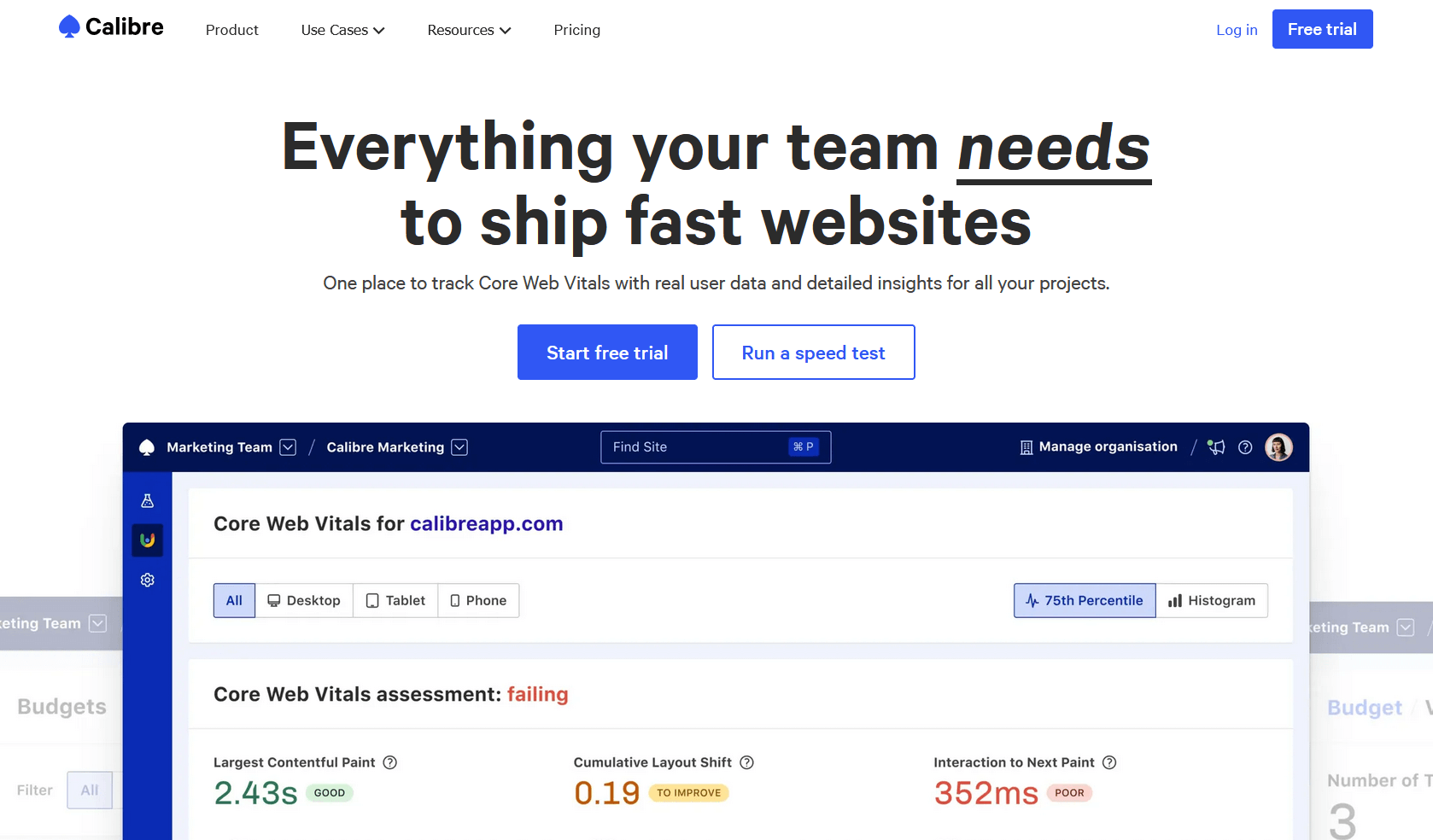
Calibre App
5. Image optimization
● What/Why: Images are often the largest files on a page and can slow load times. Optimizing image size, format, and quality reduces load time, improves Core Web Vitals, and enhances user experience—especially for mobile users with limited bandwidth.
● How: Free: Squoosh | TinyJPG Paid: ImageKit
TinyJPG
6. Lazy loading
● What/Why: Lazy loading defers loading images or content until they’re visible in the viewport. This reduces initial page load time, saves bandwidth, and allows users to interact faster with visible content, improving perceived performance.
● How: Free: Chrome DevTools → Network tab Paid: SpeedCurve
7. Minification (CSS/JS/HTML)
● What/Why: Minification removes unnecessary characters like whitespace and comments from code, reducing file sizes. Smaller files load faster and reduce server load, which boosts page speed and Core Web Vitals.
● How: Free: Build tools / Lighthouse Paid: Cloudflare Auto Minify
8. Compression (Gzip/Brotli)
● What/Why: Compression reduces the size of files sent over the network, allowing pages to load faster. Faster downloads improve user experience, reduce bounce rates, and help users on slower connections.
● How: Free: Check Gzip Compression Paid: CDN dashboards
Check GZIP Compression
9. Caching headers
● What/Why: Proper caching ensures that repeat visitors don’t have to reload unchanged assets. This reduces server load, speeds up page load for returning users, and improves overall site performance.
● How: Free: Chrome DevTools Paid: GTMetrix
GTMetrix
10. CDN enabled
● What/Why: A Content Delivery Network (CDN) delivers content from servers closer to users, reducing latency and load times globally. This improves user experience for international visitors and helps handle traffic spikes.
● How: Free: Cloudflare Free Paid: Fastly / Akamai / KeyCDN
KeyCDN
11. Font loading strategy
● What/Why: Fonts can block page rendering, causing text to appear late or cause layout shifts. Using strategies like font-display: swap improves perceived performance and ensures text is readable immediately.
● How: Free: Lighthouse Paid: SpeedCurve
12. Third-party scripts audit
● What/Why: Third-party scripts (ads, analytics, chat widgets) can slow down pages or block interactivity. Auditing and deferring non-critical scripts improves speed, Core Web Vitals, and security.
● How: Free: Chrome DevTools Coverage Paid: Request Metrics
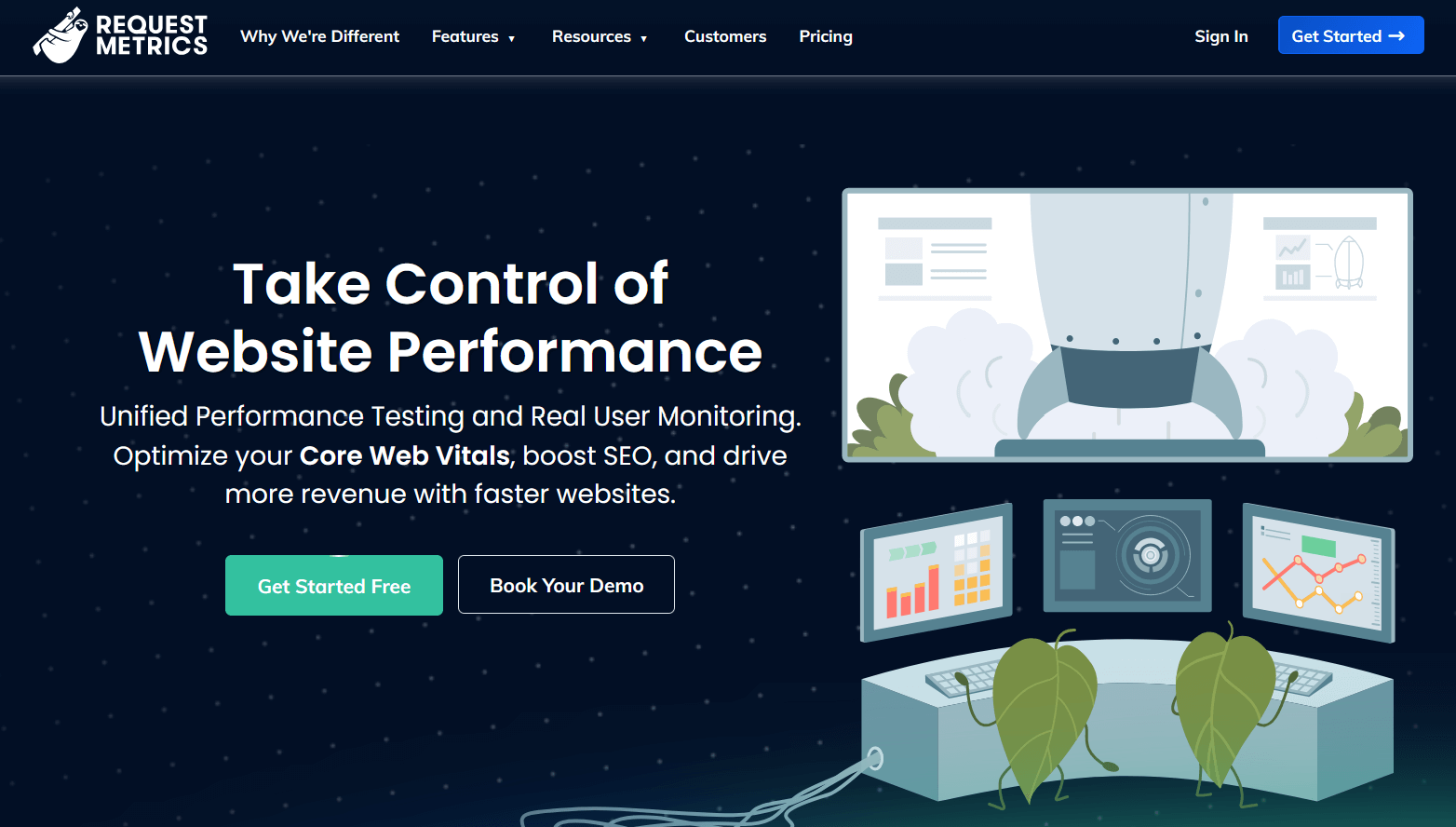
Request Metrics
13. Server response time (TTFB)
● What/Why: Time to First Byte (TTFB) measures how quickly the server responds to requests. Slow server response delays page rendering and can hurt SEO. Optimizing backend performance improves both speed and search rankings.
● How: Free: WebPageTest Paid: Pingdom
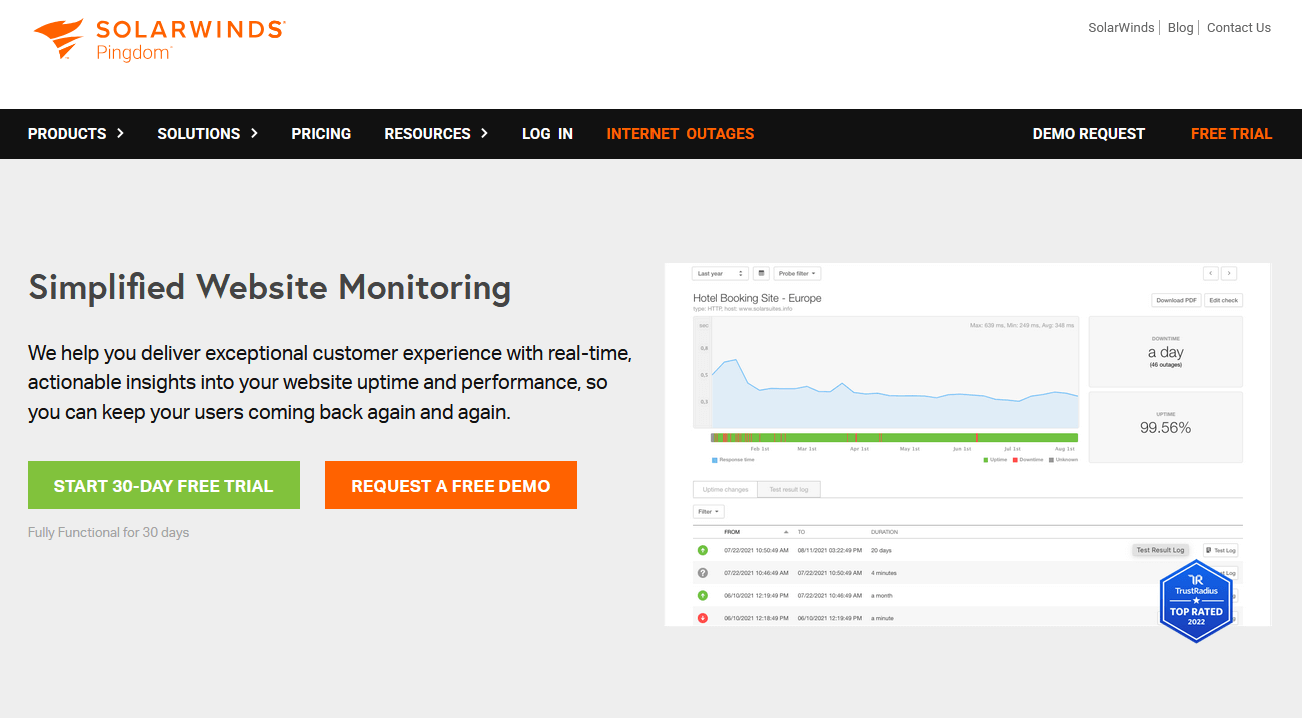
Pingdom
14. HTTP/2 or HTTP/3
● What/Why: Modern protocols allow multiple files to be sent simultaneously, reducing load times. Upgrading to HTTP/2 or HTTP/3 improves efficiency, especially for pages with many assets.
● How: Free: KeyCDN HTTP/2 Test Paid: CDN analytics
15. Resource hints (preload/prefetch)
● What/Why: Preloading critical assets or prefetching resources for upcoming pages allows browsers to prioritize what’s needed first, reducing perceived load times and making navigation smoother.
● How: Free: Lighthouse Paid: SpeedCurve
SEO & Discoverability (16–30)
16. Title tags
● What/Why: Title tags define the clickable headline shown in search engine results. They’re crucial for both SEO ranking and user click-through. A clear, descriptive title helps search engines understand your page content, while a compelling title encourages users to click, directly affecting traffic and engagement.
● How: Free: Screaming Frog (free tier) Paid: Ahrefs
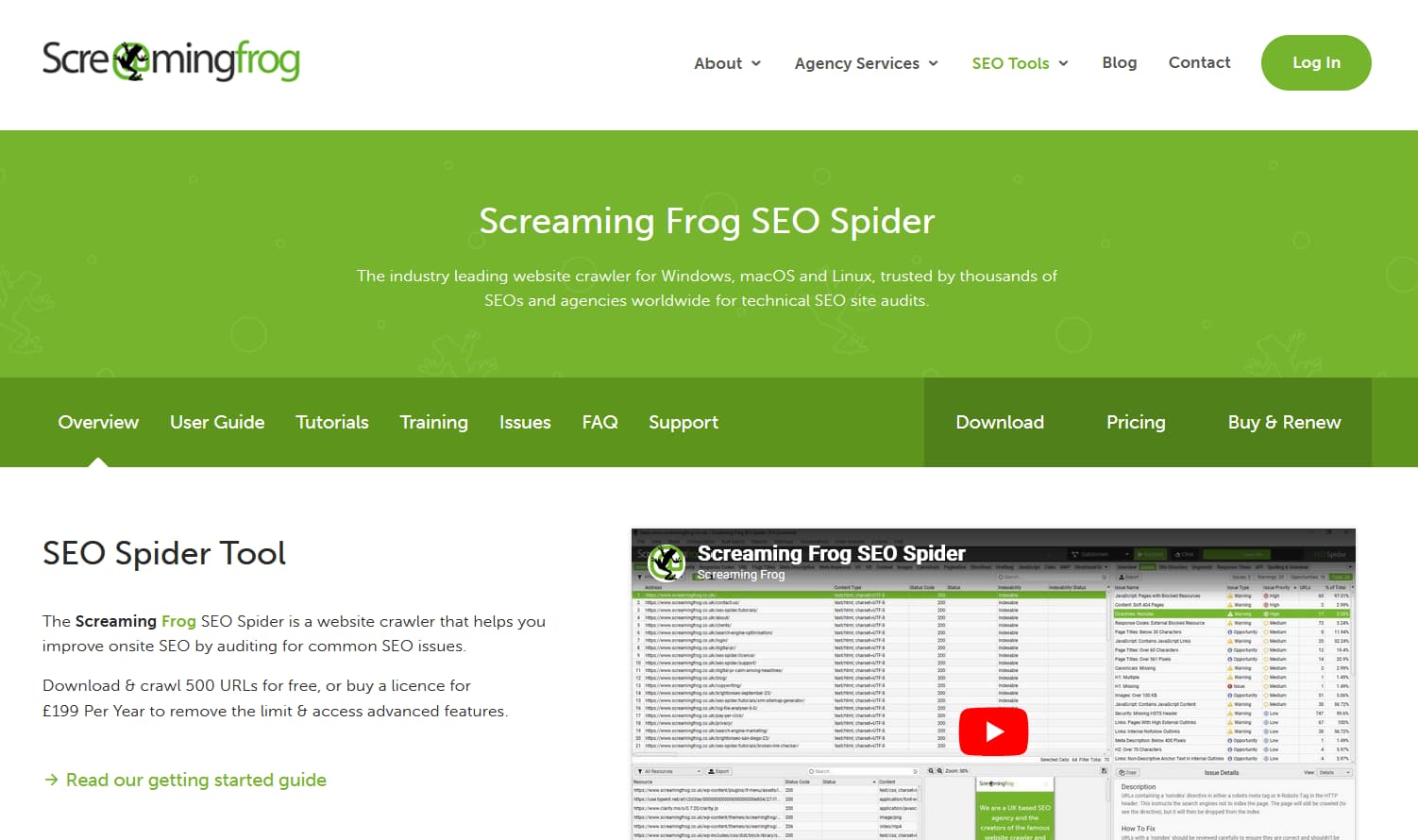
Screaming Frog Spider Tool
Ahrefs
17. Meta descriptions
● What/Why: Meta descriptions provide a short summary of a page in search results. Well-written descriptions can increase click-through rates even if your ranking stays the same, as users are more likely to click pages that clearly explain the value or content.
● How: Free: Screaming Frog Paid: Semrush
Semrush
18. H1–H6 structure
● What/Why: Heading tags organize content hierarchically, helping both users and search engines understand the structure of your page. Proper H1–H6 usage improves readability, SEO, and accessibility, guiding search engines to identify key topics and subtopics.
● How: Free: Web DevTools Paid: Ahrefs
19. Indexability
● What/Why: A page must be crawlable by search engines to appear in search results. Indexability issues—like blocked pages or improper meta tags—can prevent your content from ranking, which limits organic traffic and discoverability.
● How: Free: Google Search Console Paid: Oncrawl
Oncrawl
20. Robots.txt
● What/Why: The robots.txt file controls which pages search engines can crawl. Proper configuration prevents indexing of private, staging, or duplicate content, protecting SEO value and preventing sensitive pages from appearing in search results.
● How: Free: GSC Tester Paid: Screaming Frog
21. XML sitemap
● What/Why: An XML sitemap lists all the pages on your site for search engines, improving content discovery and indexing. It’s particularly important for large websites or sites with deep content structures, ensuring search engines find all your valuable pages.
● How: Free: CMS plugins | SEOptimer
SEOptimer
22. Canonical tags
● What/Why: Canonical tags prevent duplicate content issues by specifying the “preferred” version of a page. This consolidates SEO authority and avoids penalties or dilution of ranking signals across multiple URLs.
● How: Free: View Source Paid: Sitebulb
Sitebulb
23. Structured data
● What/Why: Structured data (schema markup) helps search engines understand the content and context of your pages, enabling rich results like featured snippets, FAQs, or product details. This can improve visibility and click-through rates in search results.
● How: Free: Schema Validator Paid: SEMrush
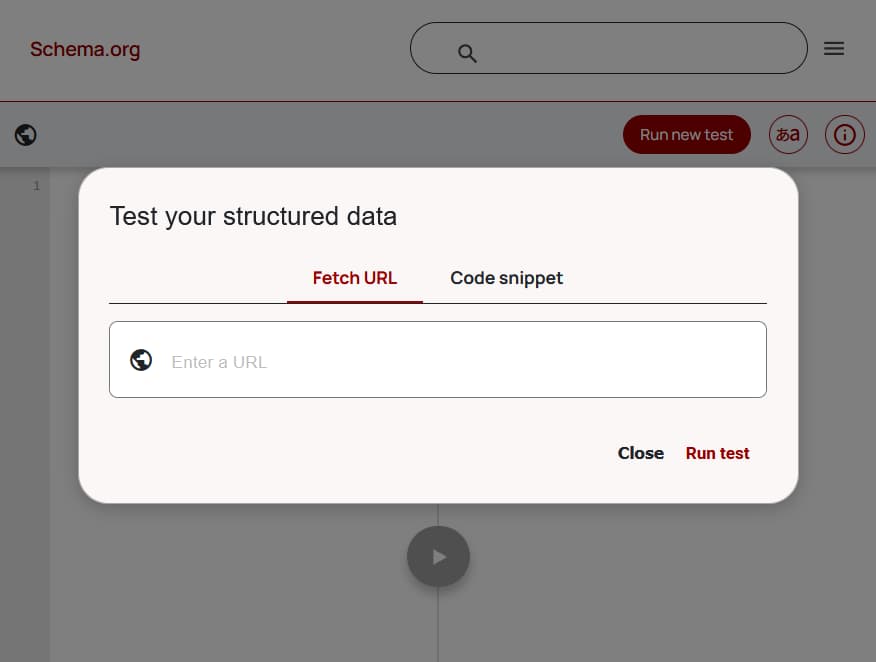
Schema.org Validator
24. Image alt text
● What/Why: Alt text describes images for search engines and users with visual impairments. It improves accessibility, provides SEO signals for image search, and ensures content is meaningful when images fail to load.
● How: Free: Screaming Frog Paid: Ahrefs
25. Internal linking
● What/Why: Internal links guide both users and search engines through your site’s structure. They distribute link equity, improve crawl efficiency, and help search engines understand page relationships, boosting SEO.
● How: Free: Google Search Console Paid: Sitebulb
26. 404 handling
● What/Why: Proper 404 (page not found) handling prevents broken pages from negatively impacting SEO and user experience. Custom 404 pages guide users back to relevant content, reducing bounce rates and preserving site authority.
● How: Free: Google Search Console Paid: Ahrefs
27. Redirects (301 vs 302)
● What/Why: 301 redirects permanently move pages and pass SEO value, while 302 redirects are temporary. Using the correct type ensures link equity is preserved and prevents loss of search rankings.
● How: Free: httpstatus.io Paid: Screaming Frog
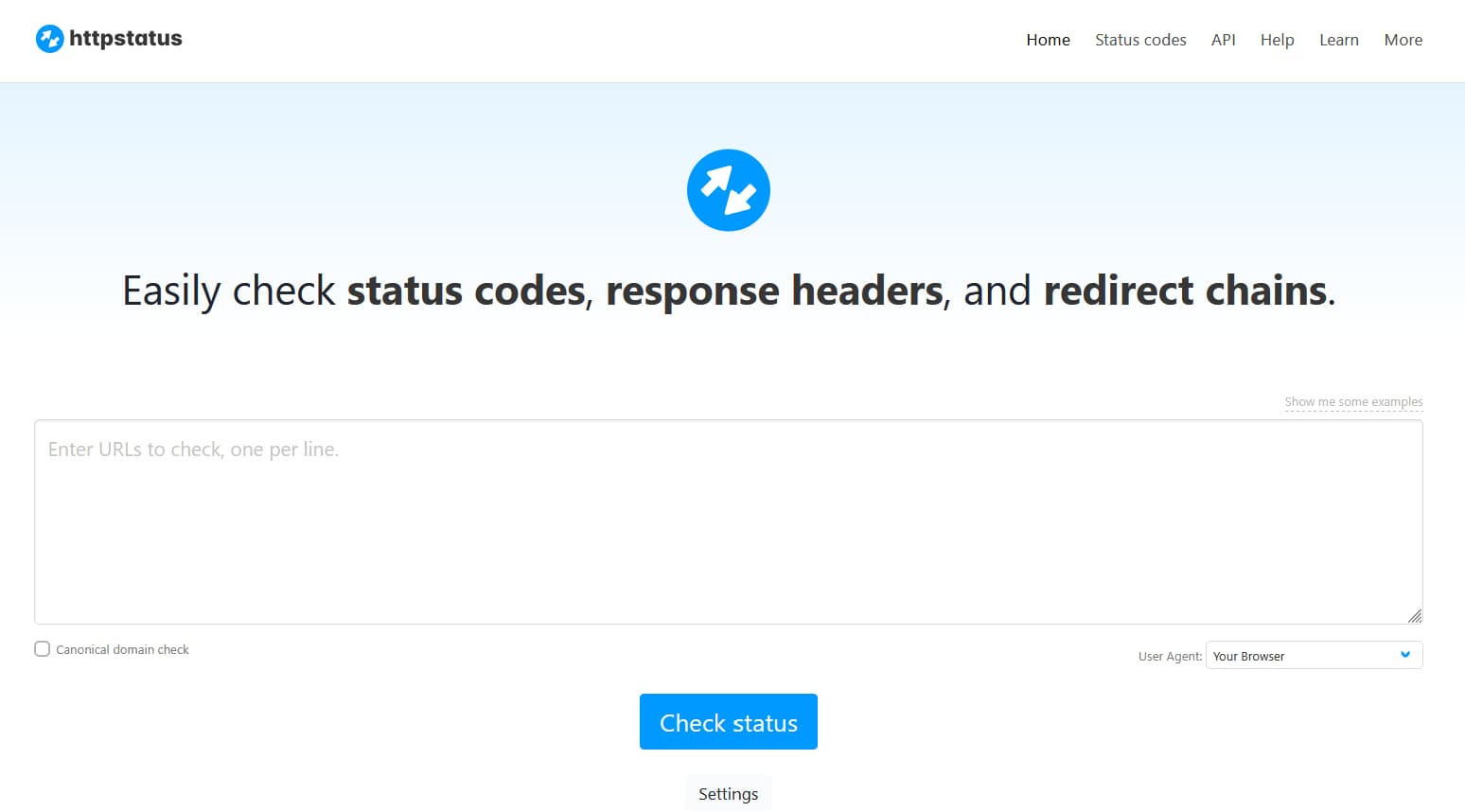
httpstatus.io
28. Mobile-first readiness
● What/Why: Google indexes and ranks pages based on their mobile version first. Ensuring your site is mobile-friendly improves user experience on small devices, enhances SEO, and helps capture the growing mobile audience.
● How: Free: Google Search Console Paid: SEMrush
29. Open Graph & Twitter cards
● What/Why: Open Graph and Twitter cards control how links appear on social media, including images, titles, and descriptions. Optimized tags increase engagement, click-through, and sharing, driving more traffic from social platforms.
● How: Free: Facebook Debugger Paid: SEMrush
30. No test/staging indexed
● What/Why: Preventing test or staging environments from being indexed avoids duplicate content, confusion in search results, and potential SEO penalties. Only your live, finalized content should be discoverable.
● How: Free: Google search Paid: Ahrefs
Accessibility (31–45)
31. Color contrast
● What/Why: Color contrast ensures text is readable against its background, which is critical for users with visual impairments or color blindness. Poor contrast can make content inaccessible and frustrate readers. High contrast improves readability, user experience, and helps meet WCAG compliance standards.
● How: Free: WebAIM Contrast Checker Paid: Axe Monitor
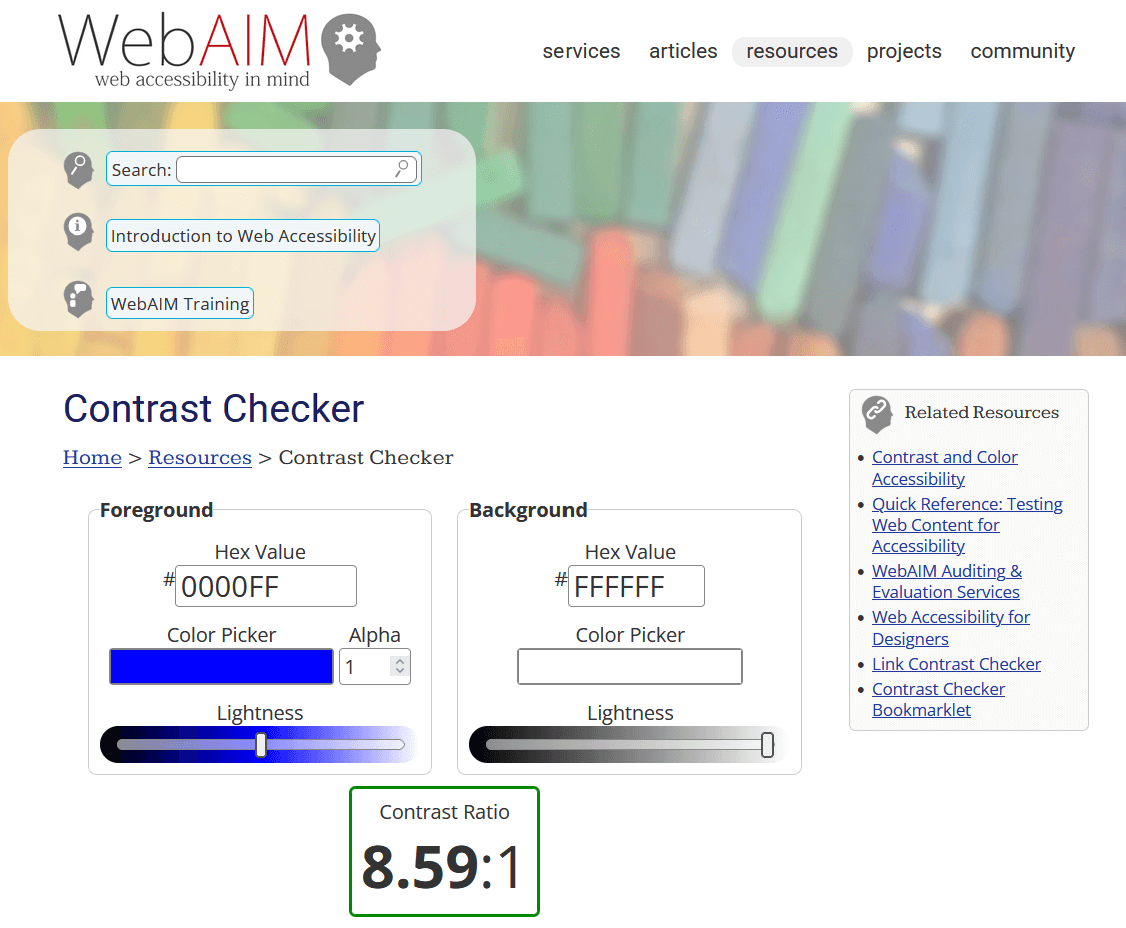
WebAIM Contrast Checker
32. Keyboard navigation
● What/Why: Many users rely on keyboards instead of a mouse, such as those with mobility impairments. Ensuring users can navigate your site using only the keyboard improves accessibility, usability, and inclusivity.
● How: Free: Manual tab testing Paid: UserWay
UserWay Checker
33. Focus states
● What/Why: Focus states visually indicate which element (link, button, input) is active as users navigate with a keyboard. Clear focus states improve navigation clarity, reduce confusion, and ensure compliance with accessibility standards.
● How: Free: Browser testing Paid: Axe
34. ARIA labels
● What/Why: ARIA (Accessible Rich Internet Applications) labels provide screen readers with meaningful descriptions of UI elements. Proper ARIA labeling ensures users who rely on assistive technology understand the function and purpose of interactive elements.
● How: Free: Axe DevTools Paid: Deque
35. Semantic HTML
● What/Why: Using semantic HTML (like
,,
) gives structure to your content and communicates meaning to both users and assistive technologies. This forms the foundation of accessibility and improves SEO by helping search engines understand your content hierarchy.
● How: Free: Lighthouse Paid: Siteimprove
Siteimprove
36. Image alt accuracy
● What/Why: Alt text should accurately describe images, providing context for screen readers and improving accessibility. Accurate alt text ensures visually impaired users can understand content, and also benefits SEO by giving search engines descriptive information.
● How: Free: Manual review Paid: Siteimprove
37. Form labels
● What/Why: Every form input should have a clear label describing its purpose. Proper form labeling helps screen readers convey the correct information, preventing user errors and improving usability for all users.
● How: Free: Axe Paid: Deque
38. Error messaging
● What/Why: Accessible error messages inform users when something goes wrong (e.g., form validation) and guide them to fix it. Clear messaging improves usability, reduces frustration, and ensures accessibility compliance.
● How: Free: Manual testing Paid: User testing tools
39. Skip navigation links
● What/Why: Skip navigation links allow keyboard and screen reader users to bypass repetitive content (like menus) and go directly to the main content. This improves efficiency and overall accessibility.
● How: Free: Keyboard testing Paid: Axe
40. Accessible modals
● What/Why: Modals must allow users to open, navigate, and close dialogs using the keyboard, without trapping focus. Accessible modals prevent confusion and ensure users relying on assistive technologies can interact properly.
● How: Free: Axe Paid: Deque
41. Video captions
● What/Why: Captions provide a textual representation of spoken content in videos, essential for hearing-impaired users and for viewers in sound-off environments. Captions also improve comprehension and engagement for all users.
● How: Free: YouTube captions Paid: Rev
42. Audio transcripts
● What/Why: Transcripts of audio content make podcasts, webinars, or audio clips accessible to deaf users and assist in SEO by providing searchable text for search engines. They also serve as an alternative for users who prefer reading.
● How: Free: Manual Paid: Rev
43. Language attribute
● What/Why: Specifying the primary language of a page using the lang attribute helps screen readers pronounce content correctly. This is essential for multilingual sites and compliance with accessibility guidelines.
● How: Free: View source Paid: Axe
44. WCAG level target
● What/Why: Defining a target level (A, AA, or AAA) ensures your website meets recognized accessibility standards. Meeting WCAG guidelines protects against legal risk, improves inclusivity, and enhances the experience for users with disabilities.
● How: Free: WCAG checklist Paid: Accessibility audits
45. Screen reader test
● What/Why: Testing your site with real screen readers ensures the experience matches expectations and that content is navigable and understandable for users with visual impairments. This is a critical real-world check beyond automated tools.
● How: Free: NVDA Paid: JAWS
NVDA Screen Reader
Browsers, Devices & Situations (46–60)
46. Chrome latest
● What/Why: Testing on the latest version of Chrome ensures your site works on the most widely used desktop browser. Chrome updates frequently, so keeping compatibility ensures users don’t experience layout issues, broken scripts, or performance problems.
● How: Manual testing + BrowserStack
BrowserStack
47. Firefox latest
● What/Why: Firefox has unique rendering quirks and CSS handling. Testing the latest version ensures features like animations, fonts, and form inputs display correctly for users on this browser, maintaining a consistent experience across platforms.
● How: Manual testing + BrowserStack
48. Safari (macOS & iOS)
● What/Why: Safari has its own engine (WebKit), which can behave differently than Chrome or Firefox. Testing both macOS and iOS ensures that layout, touch interactions, and media playback function correctly for Apple users.
● How: Real device / BrowserStack
49. Edge
● What/Why: Edge uses Chromium but can still have minor differences in rendering or JavaScript execution. Testing ensures enterprise users and Windows-based audiences get a reliable experience.
● How: Manual testing / Sauce Labs
SauceLabs
50. Android Chrome
● What/Why: Mobile Chrome is the dominant browser for Android users. Testing ensures touch, responsive design, performance, and input behavior function properly on real devices, reflecting real-world mobile usage.
● How: Real device / BrowserStack
51. iPhone Safari
● What/Why: iPhone users primarily use Safari, which handles some CSS, viewport, and JavaScript features differently. Testing guarantees a smooth mobile experience, preventing layout breaks or inaccessible features.
● How: Real device / Sauce Labs
52. Tablet layouts
● What/Why: Tablets have intermediate screen sizes and touch interfaces. Testing ensures responsive design adapts correctly, navigation is touch-friendly, and readability is maintained.
● How: DevTools / BrowserStack
53. Small screens
● What/Why: Small screens (phones under 6") need optimized layouts to prevent horizontal scrolling, cut-off content, or unusable menus. Testing ensures mobile-first design principles are applied correctly.
● How: DevTools responsive mode
54. Large monitors
● What/Why: Large desktop or 4K monitors can reveal layout issues like stretched images, oversized whitespace, or misaligned grids. Testing ensures a polished visual experience across all display sizes.
● How: Manual testing
55. Touch interactions
● What/Why: Many devices rely on touch gestures like swipes, taps, or pinch-to-zoom. Testing ensures all interactive elements respond correctly and don’t break with touch input.
● How: Real devices
56. Slow 3G
● What/Why: Simulating slow connections tests page load and performance under constrained bandwidth. This ensures users with limited or unstable internet can access content without frustration.
● How: Chrome throttling
57. Offline behavior
● What/Why: Testing offline functionality is crucial for progressive web apps (PWAs) or cached content. Proper offline behavior ensures users can still access key information or features without an internet connection.
● How: DevTools
58. JS disabled fallback
● What/Why: Some users or environments block JavaScript. Testing for JS-disabled scenarios ensures critical content and navigation remain accessible, improving accessibility and SEO.
● How: Browser settings
59. High zoom (200%)
● What/Why: Users with visual impairments may zoom pages. Testing high zoom ensures layouts, fonts, and images scale without breaking, supporting accessibility compliance.
● How: Browser zoom
60. Dark mode
● What/Why: Many users enable dark mode at the OS or browser level. Testing ensures your site’s colors, contrast, and readability adapt appropriately, providing a consistent experience for all users.
● How: OS/browser toggle
Security, Infrastructure & Ops (61–85)
61. HTTPS enforced
● What/Why: HTTPS ensures that all data between the user’s browser and your server is encrypted, protecting sensitive information like passwords, payment details, and personal data. It also boosts trust, prevents man-in-the-middle attacks, and improves SEO rankings.
● How: SSL Labs / Cloudflare
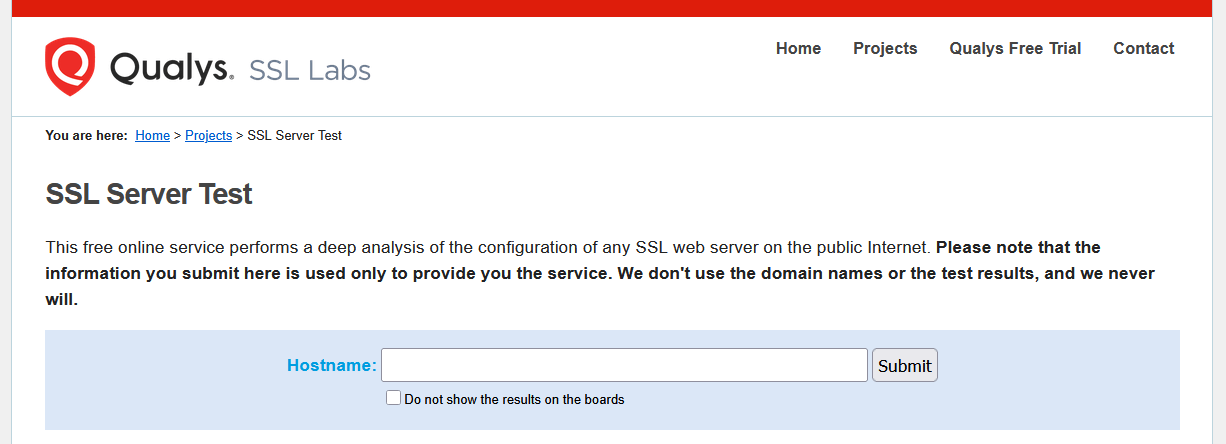
SSL Labs
62. HSTS
● What/Why: HTTP Strict Transport Security (HSTS) forces browsers to use HTTPS for all requests to your site, preventing downgrade attacks and ensuring secure connections. This is a key layer of security against interception or protocol stripping attacks.
● How: SecurityHeaders.com
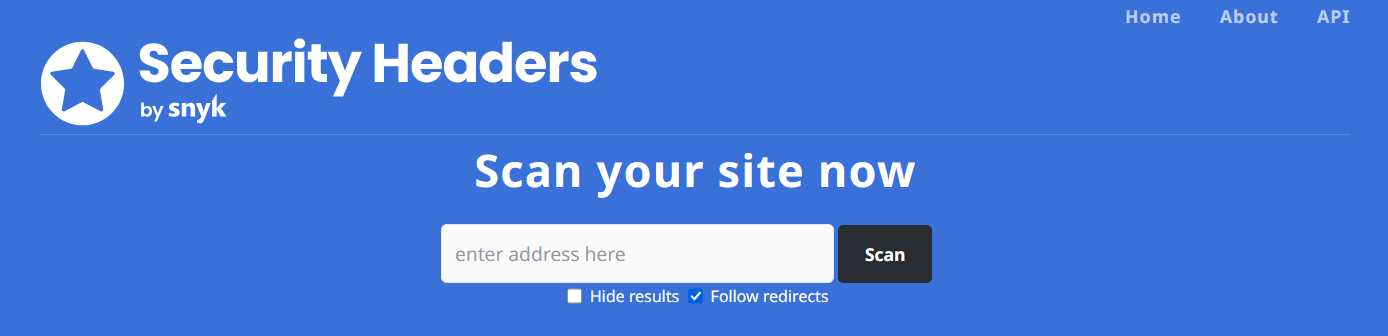
Security Headers
63. SPF records
● What/Why: Sender Policy Framework (SPF) records prevent spammers from sending emails using your domain. Proper SPF setup improves email deliverability and protects your domain from phishing attacks.
● How: MXToolbox SPF Check
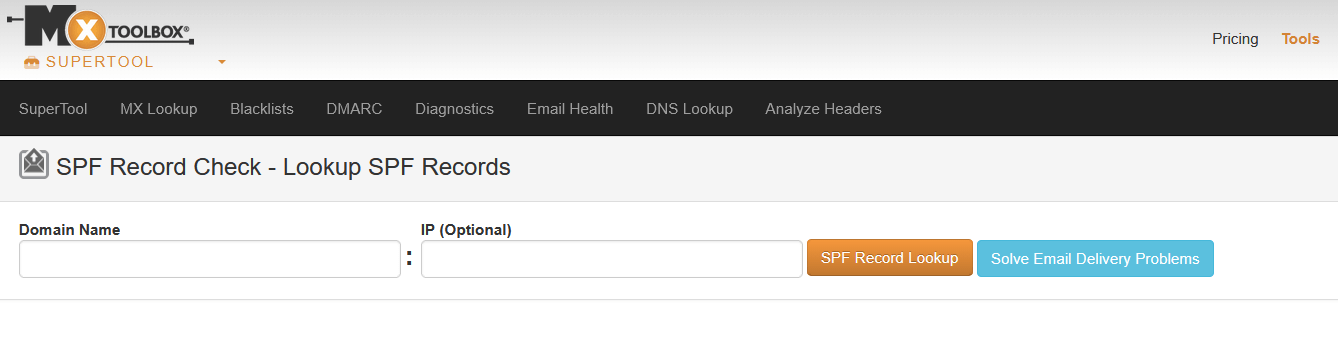
MXToolbox
64. DKIM
● What/Why: DomainKeys Identified Mail (DKIM) adds a cryptographic signature to emails from your domain. It verifies that emails are authentic and have not been altered, boosting deliverability and security.
● How: MXToolbox
65. DMARC
● What/Why: Domain-based Message Authentication, Reporting & Conformance (DMARC) works with SPF and DKIM to prevent spoofing, phishing, and fraudulent emails. It allows you to define policies for how unauthorized emails should be handled.
● How: DMARCian
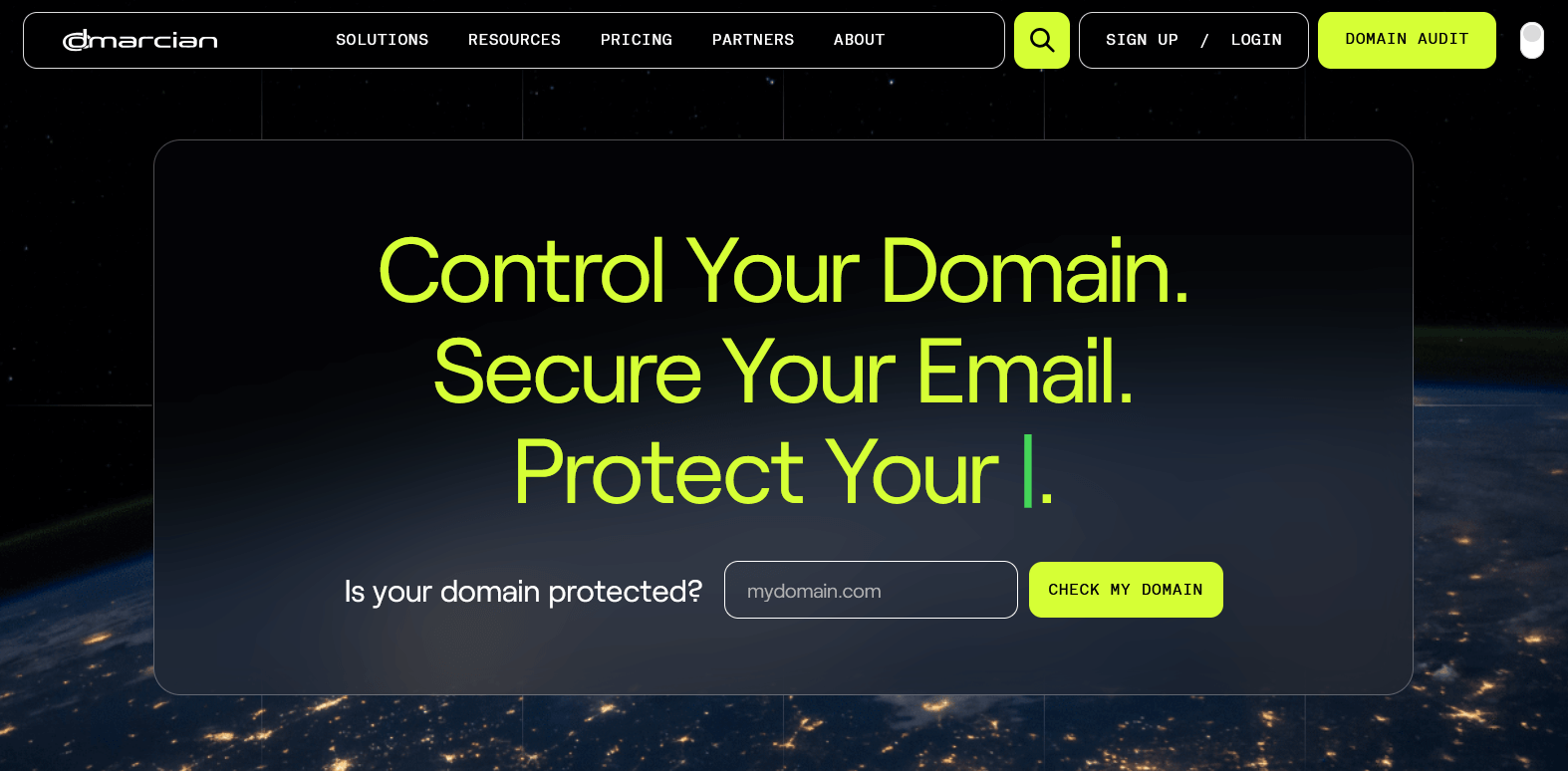
DMARCian
66. DNS TTL sanity
● What/Why: DNS Time-to-Live (TTL) settings affect how quickly DNS changes propagate. Proper TTL ensures stability, reduces downtime during updates, and prevents caching issues that could block access or expose outdated configurations.
● How: DNS checker tools
67. WAF enabled
● What/Why: A Web Application Firewall (WAF) protects your site from common attacks like SQL injection, cross-site scripting, and bot traffic. Enabling a WAF prevents vulnerabilities from being exploited in real-time.
● How: Cloudflare / AWS WAF / Imunify360
Imunify360
68. DDoS protection
● What/Why: Distributed Denial of Service (DDoS) attacks overwhelm servers with traffic. Protection ensures your website remains available and responsive even under malicious load, preserving uptime and user trust.
● How: CDN dashboards
69. Vulnerability scan
● What/Why: Regular scans detect security flaws in your server, CMS, or code. Identifying vulnerabilities before attackers do reduces risk, prevents data breaches, and helps maintain compliance.
● How: Free: OWASP ZAP Paid: Detectify / Acunetix / Burp Suite / Consult with SEIRIM Cybersecurity for assistance and options
ZAP Scanner
70. CMS updated
● What/Why: Keeping your CMS up-to-date ensures you have the latest security patches, bug fixes, and performance improvements. Outdated software is a common attack vector for hackers.
● How: Admin dashboard
71. Plugin/theme audit
● What/Why: Plugins and themes can introduce vulnerabilities if not vetted or updated. Regular audits ensure only trusted, updated extensions are used, reducing security risks.
● How: Manual / WPScan if using WordPress
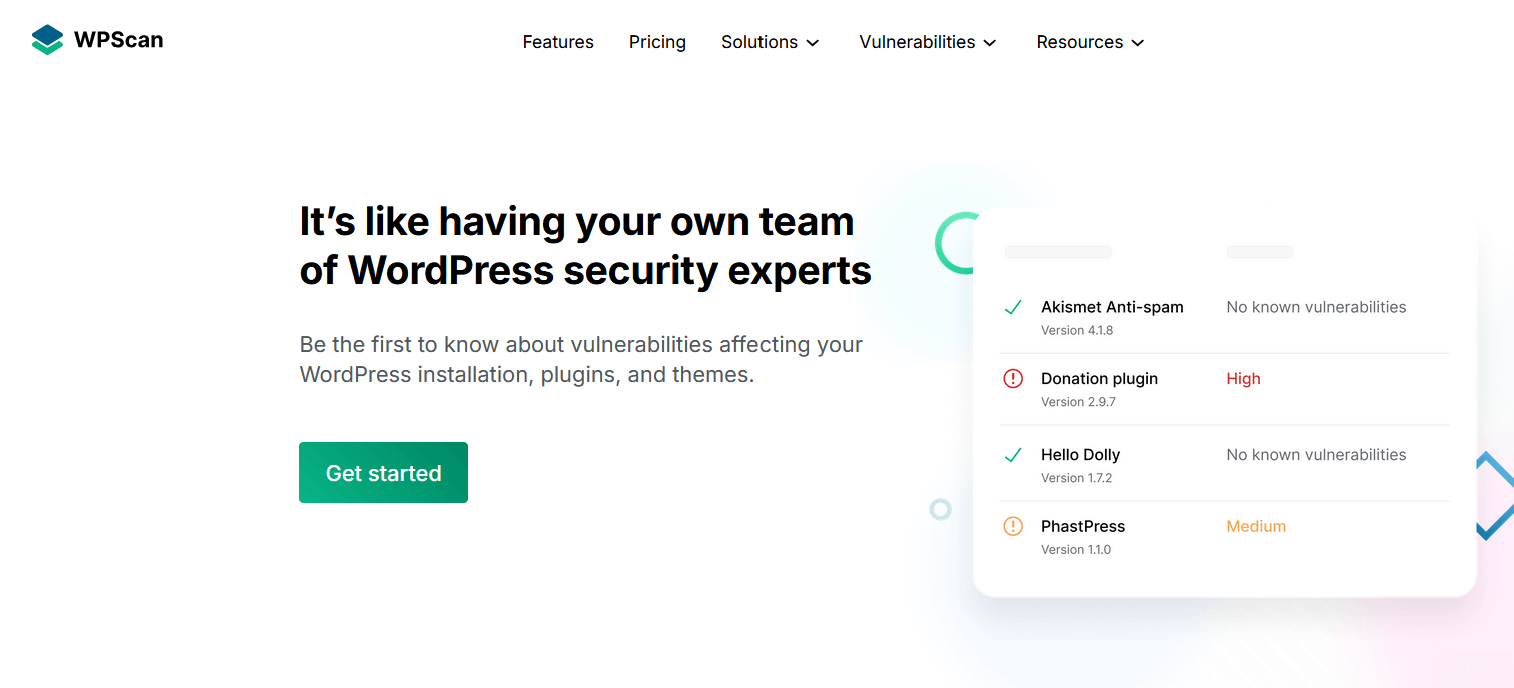
WPScan
72. File permissions
● What/Why: Correct file permissions prevent unauthorized access or modifications to sensitive files. Improper permissions can allow hackers to upload malware or compromise data.
● How: Server review
73. Secrets not in repo
● What/Why: API keys, passwords, and private credentials should never be committed to version control. Keeping secrets out of repositories prevents accidental leaks and unauthorized access.
● How: Git audit
74. Backup system
● What/Why: Regular backups protect against data loss due to hacking, accidental deletion, or server failures. A reliable system ensures that you can restore your site quickly and minimize downtime.
● How: Hosting tools
75. Backup restore test
● What/Why: Testing restores ensures backups are complete, functional, and can be recovered when needed. Without testing, a backup may fail in a real emergency.
● How: Manual restore
76. Uptime monitoring
● What/Why: Continuous monitoring alerts you when your website goes offline. Quick response to downtime preserves revenue, SEO rankings, and user trust.
● How: Free: UptimeRobot Paid: Pingdom
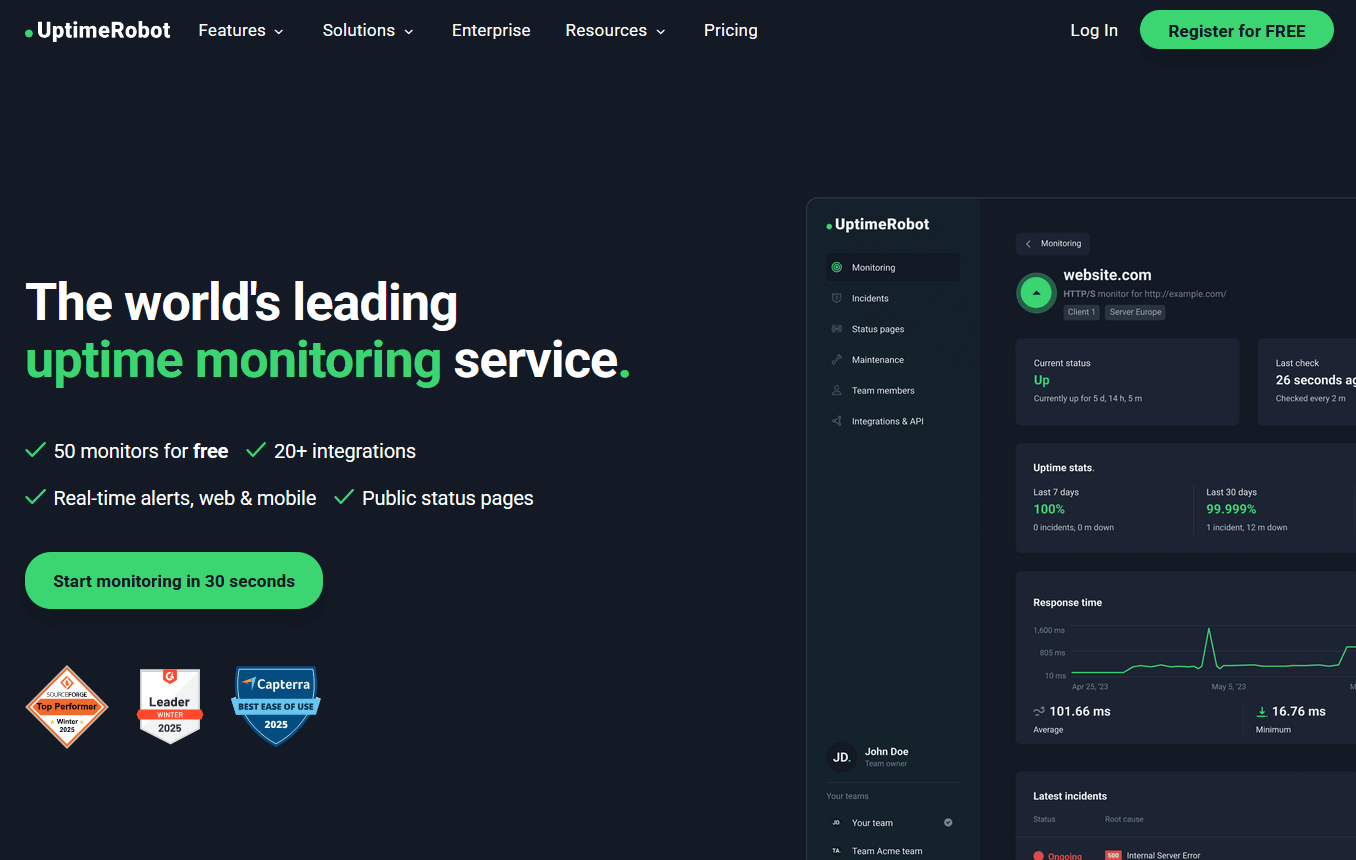
UptimeRobot
77. Error logging
● What/Why: Logging errors allows developers to detect, diagnose, and fix issues quickly. Proper error tracking improves reliability, reduces downtime, and ensures a smoother user experience.
● How: Free: Sentry free tier Paid: Sentry
Sentry
78. Access logs enabled
● What/Why: Access logs record all requests to your server, helping track suspicious activity, debug issues, and perform audits. Logs are essential for incident response and forensic analysis.
● How: Server config
79. Admin access review
● What/Why: Regularly reviewing admin and privileged user access ensures only authorized personnel have control over critical systems. This reduces the risk of insider threats and accidental misconfigurations.
● How: Manual audit
80. Rate limiting
● What/Why: Rate limiting controls the number of requests a user or bot can make in a set time. This protects against brute-force attacks, abuse, and server overload.
● How: WAF rules
81. CSP headers
● What/Why: Content Security Policy (CSP) headers prevent cross-site scripting (XSS) and other code injection attacks by restricting which scripts and resources can run. CSP improves security and compliance.
● How: SecurityHeaders
82. X-Frame-Options
● What/Why: This header prevents clickjacking attacks by controlling whether your site can be embedded in iframes. It protects users from malicious overlays or disguised content.
● How: SecurityHeaders
83. X-Content-Type-Options
● What/Why: This header prevents browsers from interpreting files as a different MIME type, protecting against MIME sniffing attacks and ensuring secure rendering of content.
● How: SecurityHeaders
84. Referrer policy
● What/Why: Controlling referrer information prevents sensitive data leakage when users navigate away from your site. Proper referrer policies improve privacy and security.
● How: SecurityHeaders
85. Legal pages present
● What/Why: Terms of service, privacy policies, and cookie notices ensure legal compliance and transparency with users. Missing legal pages can lead to penalties, user distrust, and compliance violations.
● How: Manual check
Analytics, User Experience & Business (86–100)
86. Analytics installed
● What/Why: Analytics tools like GA4 or Plausible allow you to track user behavior, traffic sources, and engagement. Without analytics, you cannot measure the performance of your site, optimize user experience, or make informed business decisions.
● How: GA4 / Plausible
Plausible
87. Events tracked
● What/Why: Event tracking records specific user actions (button clicks, video plays, form submissions). This helps measure engagement, optimize user flows, and identify where visitors drop off.
● How: Tag Manager
88. Conversion goals
● What/Why: Setting conversion goals allows you to measure how well your site drives desired actions, like purchases, sign-ups, or downloads. This provides insights into ROI and the effectiveness of marketing efforts.
● How: GA4 setup
89. Cookie consent
● What/Why: Cookie consent banners ensure compliance with privacy regulations like GDPR and CCPA. They inform users about data collection and allow them to control tracking, building trust and avoiding fines.
● How: Cookiebot
Cookiebot
90. Privacy compliance
● What/Why: Ensuring privacy compliance covers legal requirements, protects user data, and prevents penalties. It includes proper handling of personal data, consent management, and privacy policy visibility.
● How: Legal review
91. Contact forms
● What/Why: Contact forms are a primary way for users to reach your business. Testing ensures forms submit correctly, emails are sent reliably, and required fields work as expected, preventing lost leads.
● How: Manual test
92. Email delivery
● What/Why: Testing email delivery ensures transactional or marketing emails reach recipients without being flagged as spam. Reliable email communication is essential for conversions and customer trust.
● How: Send test emails
93. Transaction testing
● What/Why: For e-commerce or subscription sites, testing payments ensures the checkout flow works correctly, transactions are processed, and customers receive confirmations, preventing revenue loss.
● How: Test payments
94. Error pages (404/500)
● What/Why: Custom error pages help users recover from broken links or server issues, improving UX and reducing frustration. They also prevent SEO loss from poorly handled errors.
● How: Manual
95. Search function
● What/Why: Site search is a key navigation tool for content-heavy websites. Testing ensures it returns relevant results, handles typos, and provides filters, improving user satisfaction and conversions.
● How: Manual
96. Content proofreading
● What/Why: Accurate, well-written content builds trust, reduces confusion, and improves SEO. Errors can undermine credibility and frustrate users.
● How: Manual / Grammarly
Grammarly
97. Broken links
● What/Why: Broken links harm SEO, frustrate users, and reduce trust. Regular checking ensures internal and external links work correctly and content remains reliable.
● How: Free: Broken Link Checker Paid: Ahrefs
98. Favicon & icons
● What/Why: Favicons and app icons improve brand recognition, user experience, and professionalism. Missing or misconfigured icons can look unpolished on browsers and devices.
● How: Browser check
99. Social links
● What/Why: Social media links provide engagement channels and drive traffic. Testing ensures links are correct, open properly, and display previews where applicable, preventing broken or misdirected connections.
● How: Manual
100. Launch rollback plan
● What/Why: A rollback plan ensures you can quickly revert to a previous stable version if something goes wrong during launch. This mitigates risk, prevents downtime, and protects revenue and user experience.
● How: Deployment checklist
Conclusion
Before you launch (and again after you launch) check for all of these important points to ensure your website launch and online presence serves all your users and audience well.


 2026-06-15 - Cybersecurity
 2026-05-13 - Digital Marketing
 2026-03-11 - Cybersecurity